
Vivaldi is a feature-rich, customizable browser built on the Chromium engine. Thanks to its Chromium foundation, Vivaldi supports Chrome extensions out of the box, making it easy to install Cast to Sonos and stream audio to your Sonos speakers.
Vivaldi and Chrome Extension Compatibility
Since Vivaldi uses the same underlying technology as Chrome, you can install extensions directly from the Chrome Web Store without any additional configuration. This means Cast to Sonos works natively in Vivaldi with all its features fully functional.
Installation Instructions
Step 1: Launch Vivaldi
Open Vivaldi on your computer. If you haven't installed Vivaldi yet, download it from vivaldi.com.
Step 2: Visit the Chrome Web Store
Enter the following URL in Vivaldi's address bar:
https://chromewebstore.google.com
Or navigate directly to the Cast to Sonos extension:
https://chromewebstore.google.com/detail/cast-to-sonos/defbpbmenfaikcnhmamnghdlcmahjaib
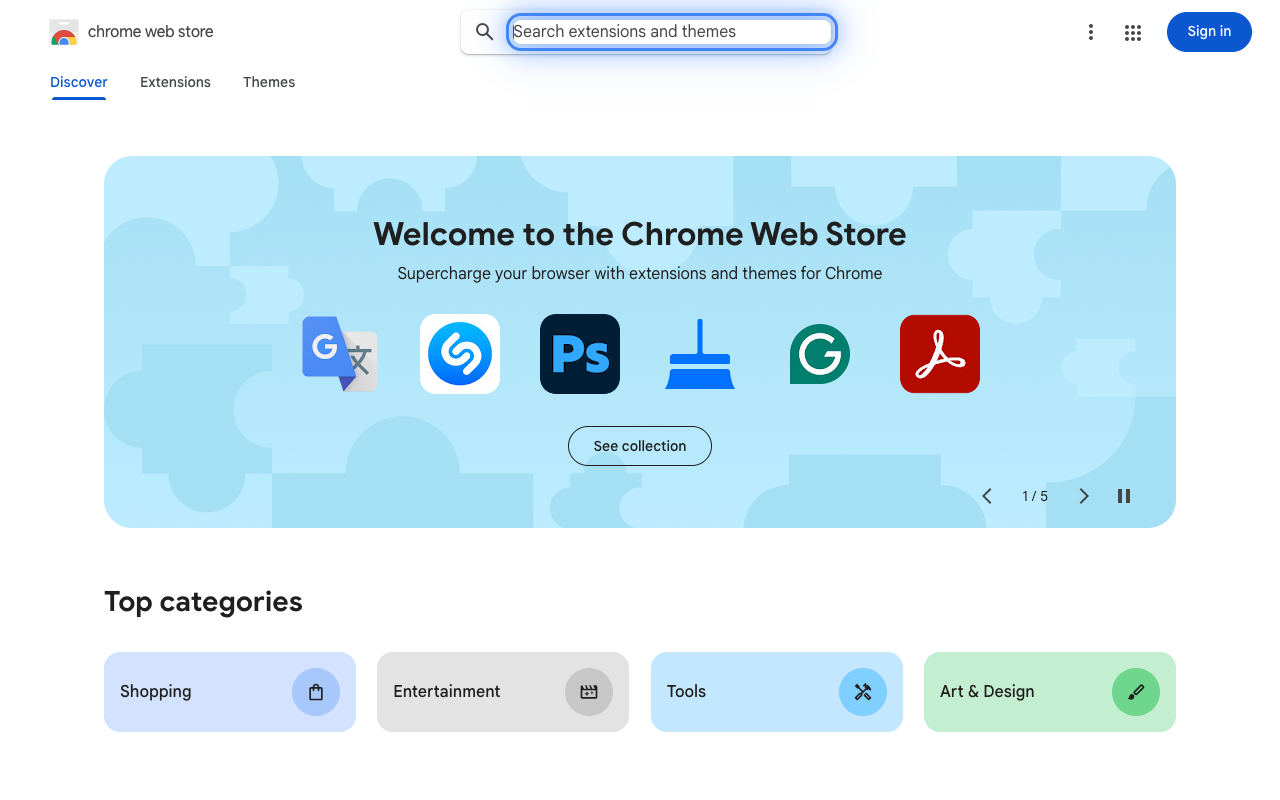
Step 3: Find Cast to Sonos
If you're on the Chrome Web Store homepage, type "Cast to Sonos" in the search field and press Enter. Select the extension from the results.
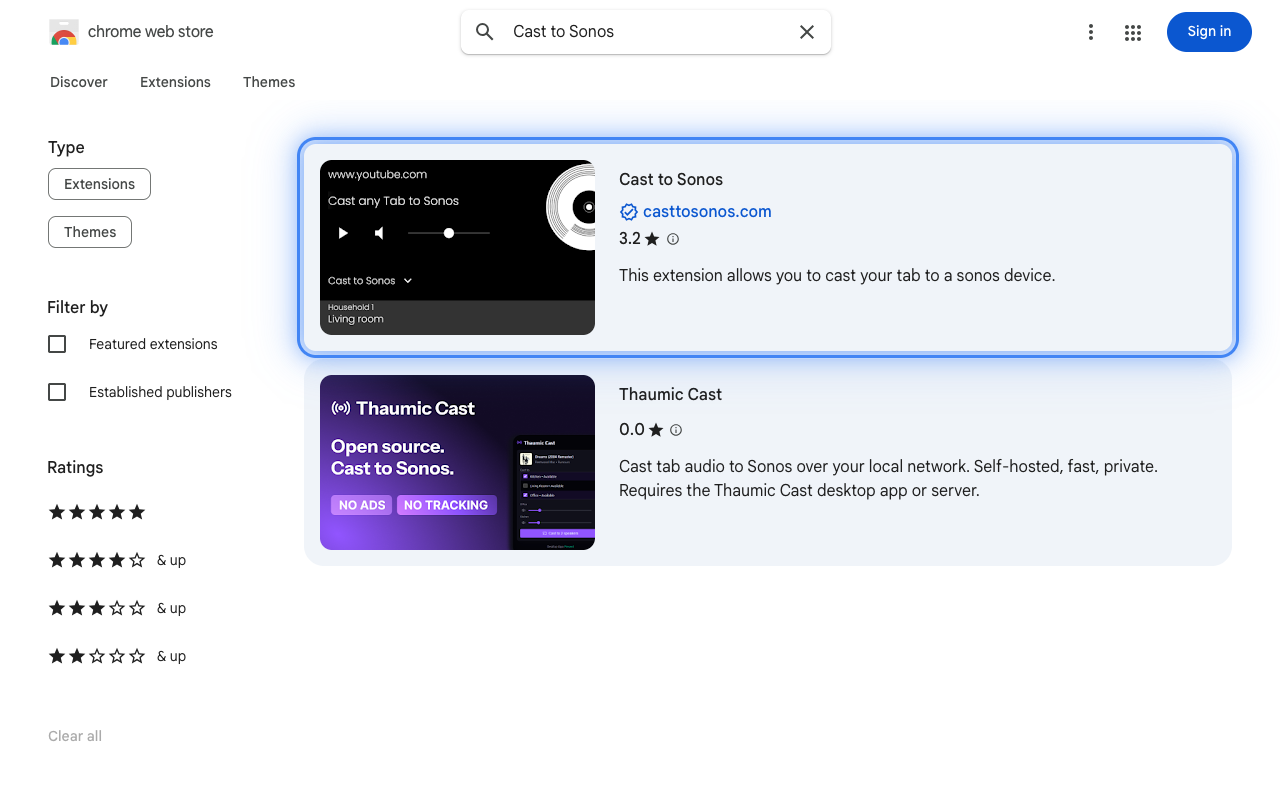
Step 4: Install the Extension
Click the "Add to Chrome" button on the extension page. Vivaldi will handle the installation even though the button references Chrome.
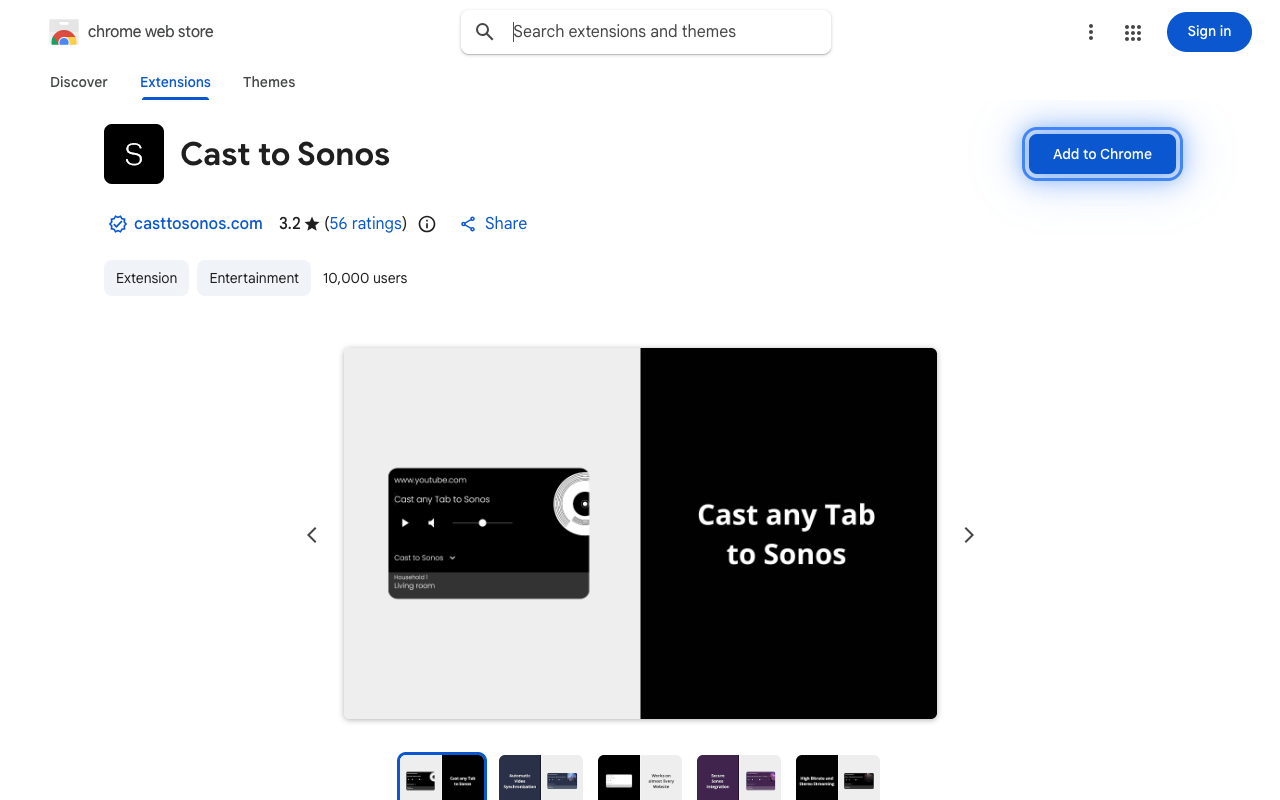
Step 5: Approve the Permissions
A dialog will appear showing the permissions Cast to Sonos requires. Click "Add extension" to complete the installation.
Step 6: Access the Extension
After installation, you'll find the Cast to Sonos icon in Vivaldi's toolbar. If it's hidden, click the Extensions button (puzzle piece icon) and pin Cast to Sonos for quick access.
Step 7: Set Up Your Sonos Connection
Click the Cast to Sonos icon to open the extension popup. Sign in with your Sonos account and choose which speakers you want to use.
Common Issues and Solutions
Installation Problems
If the extension won't install:
- Update Vivaldi to the latest version
- Check that extensions from the Chrome Web Store are enabled in Vivaldi settings
- Verify your network connection is working
Missing Extension Icon
If the Cast to Sonos icon isn't visible in your toolbar:
- Click the Extensions button (puzzle piece) in the toolbar
- Find Cast to Sonos in the list
- Click the pin icon to keep it visible
Using Cast to Sonos in Vivaldi
With the extension installed, streaming audio is straightforward:
- Navigate to any website with audio content
- Click the Cast to Sonos icon in your toolbar
- Choose your target Sonos speaker or speaker group
- Press Play to begin streaming
Why Vivaldi Works Well with Cast to Sonos
- Chromium Foundation: Full compatibility with Chrome extensions
- Customization Options: Tailor your browser experience while streaming
- Tab Management: Vivaldi's powerful tab features help organize your audio sources
- Built-in Tools: Use Vivaldi's notes and panels alongside your streaming
Stream your favorite audio content from Vivaldi to your Sonos speakers and enjoy the best of both worlds: a highly customizable browser and seamless Sonos integration.