
Brave browser is a popular privacy-focused browser built on Chromium, which means it's fully compatible with Chrome extensions. This guide will walk you through installing Cast to Sonos on Brave directly from the Chrome Web Store.
Why Use Cast to Sonos with Brave?
Brave offers enhanced privacy features while maintaining full compatibility with Chrome extensions. By installing Cast to Sonos, you can stream audio from any browser tab to your Sonos speakers while enjoying Brave's built-in ad blocking and tracker protection.
Step-by-Step Installation Guide
Step 1: Open Brave Browser
Launch Brave browser on your PC or laptop. If you don't have Brave installed yet, you can download it from brave.com.
Step 2: Navigate to the Chrome Web Store
In the Brave address bar, go to the Chrome Web Store by visiting:
https://chromewebstore.google.com
Alternatively, you can go directly to the Cast to Sonos extension page:
https://chromewebstore.google.com/detail/cast-to-sonos/defbpbmenfaikcnhmamnghdlcmahjaib
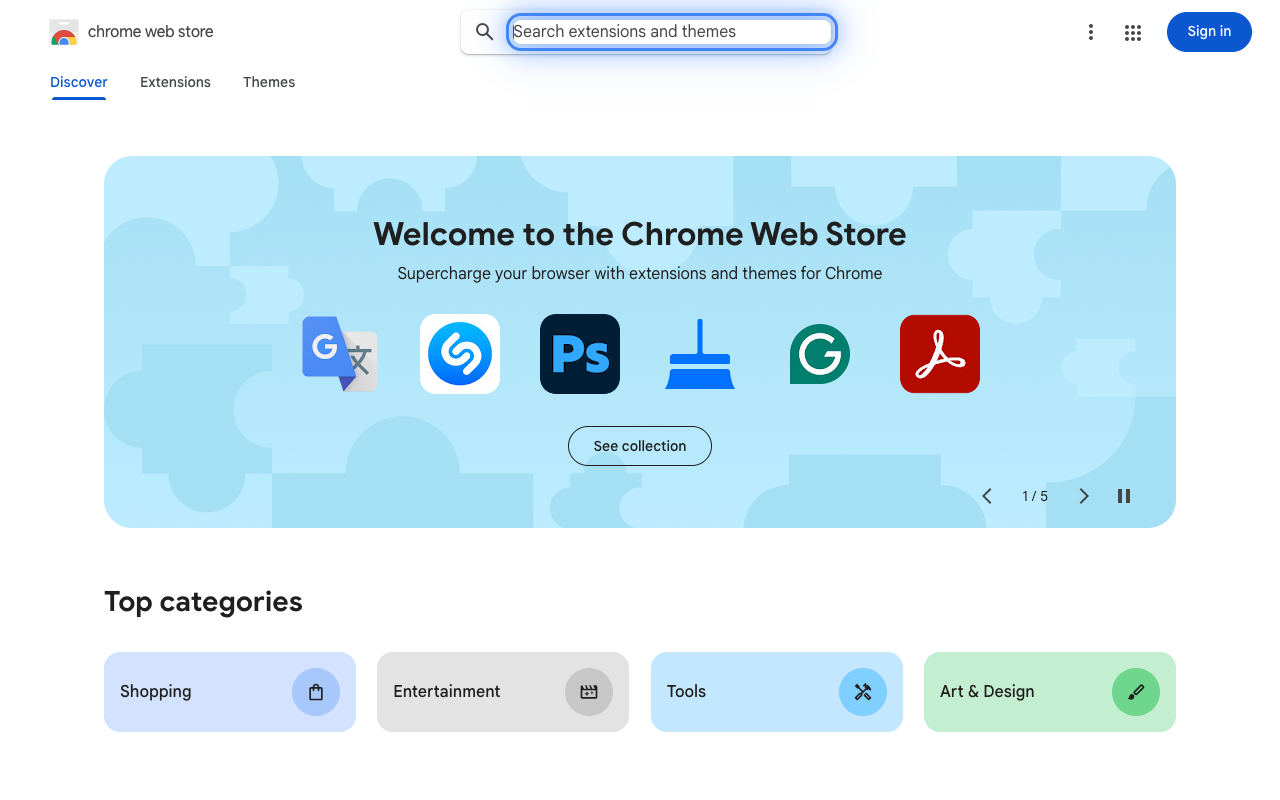
Step 3: Search for Cast to Sonos (Optional)
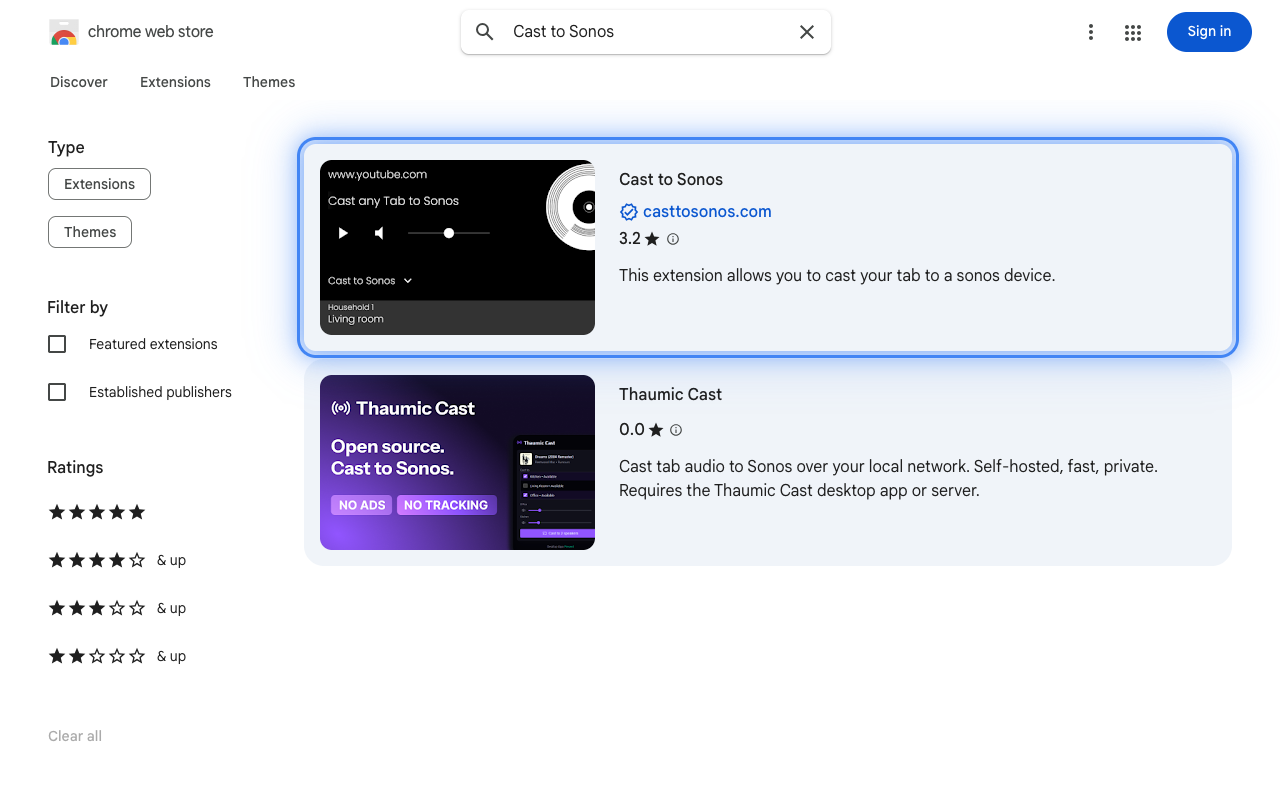
If you navigated to the Chrome Web Store homepage, use the search bar at the top to search for "Cast to Sonos". Click on the extension from the search results.
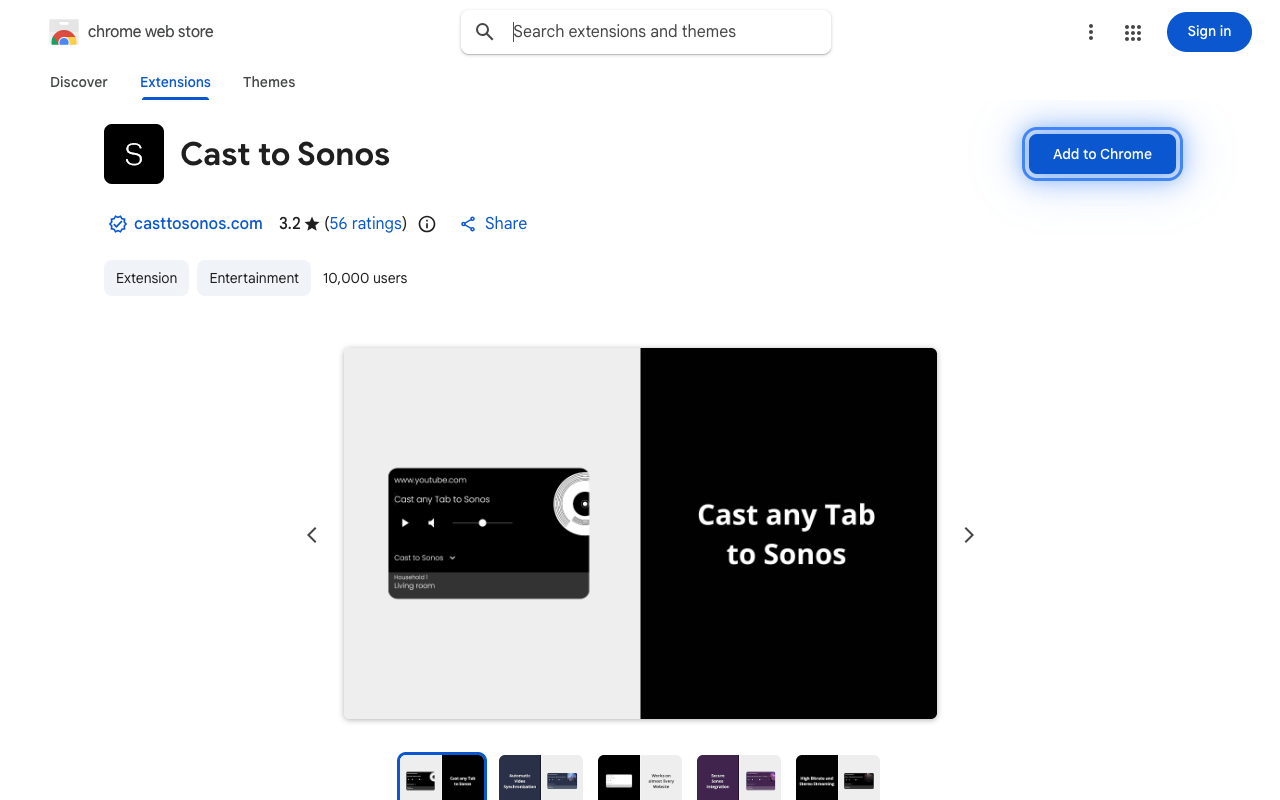
Step 4: Add the Extension to Brave
On the Cast to Sonos extension page, click the "Add to Chrome" button. Don't worry about the button text saying "Chrome". Brave fully supports Chrome extensions.
Step 5: Confirm the Installation
A popup will appear asking you to confirm the installation. Review the permissions and click "Add extension" to proceed.
Step 6: Pin the Extension (Recommended)
After installation, click the puzzle piece icon (Extensions) in the top-right corner of Brave. Find Cast to Sonos in the list and click the pin icon next to it. This will keep the extension visible in your toolbar for easy access.
Step 7: Connect to Your Sonos System
Click the Cast to Sonos icon in your toolbar to open the extension. Follow the on-screen instructions to connect your Sonos account and select your speakers.
Troubleshooting
Extension Not Installing?
If you encounter issues installing the extension, make sure:
- You're using the latest version of Brave browser
- You haven't disabled Chrome Web Store extensions in Brave settings
- Your internet connection is stable
Can't Find the Extension Icon?
If you don't see the Cast to Sonos icon after installation:
- Click the puzzle piece icon in the toolbar
- Look for Cast to Sonos in the dropdown list
- Click the pin icon to add it to your toolbar
Start Streaming
Once installed, you can start streaming audio from any tab to your Sonos speakers. Simply:
- Open any website with audio (YouTube, Spotify Web, podcasts, etc.)
- Click the Cast to Sonos icon
- Select your Sonos speaker or group
- Click Play to start streaming
Benefits of Using Brave with Cast to Sonos
- Privacy Protection: Brave blocks trackers and ads by default
- Faster Browsing: Less clutter means faster page loads
- Full Compatibility: All Cast to Sonos features work seamlessly
- Chromium-Based: Regular updates and security patches
Enjoy streaming your favorite audio content to your Sonos speakers with the privacy and speed benefits of Brave browser!